
Chair for professionals Web guide
Add a service
Services tell clients what they can book, how much it costs and how long it takes. This guide covers the business service menu managed by a solo professional or business owner.
Open the service form
- Open Services from the dashboard navigation.
- Select Add service. If your menu is empty, you can also select Add your first service.
Enter the service details
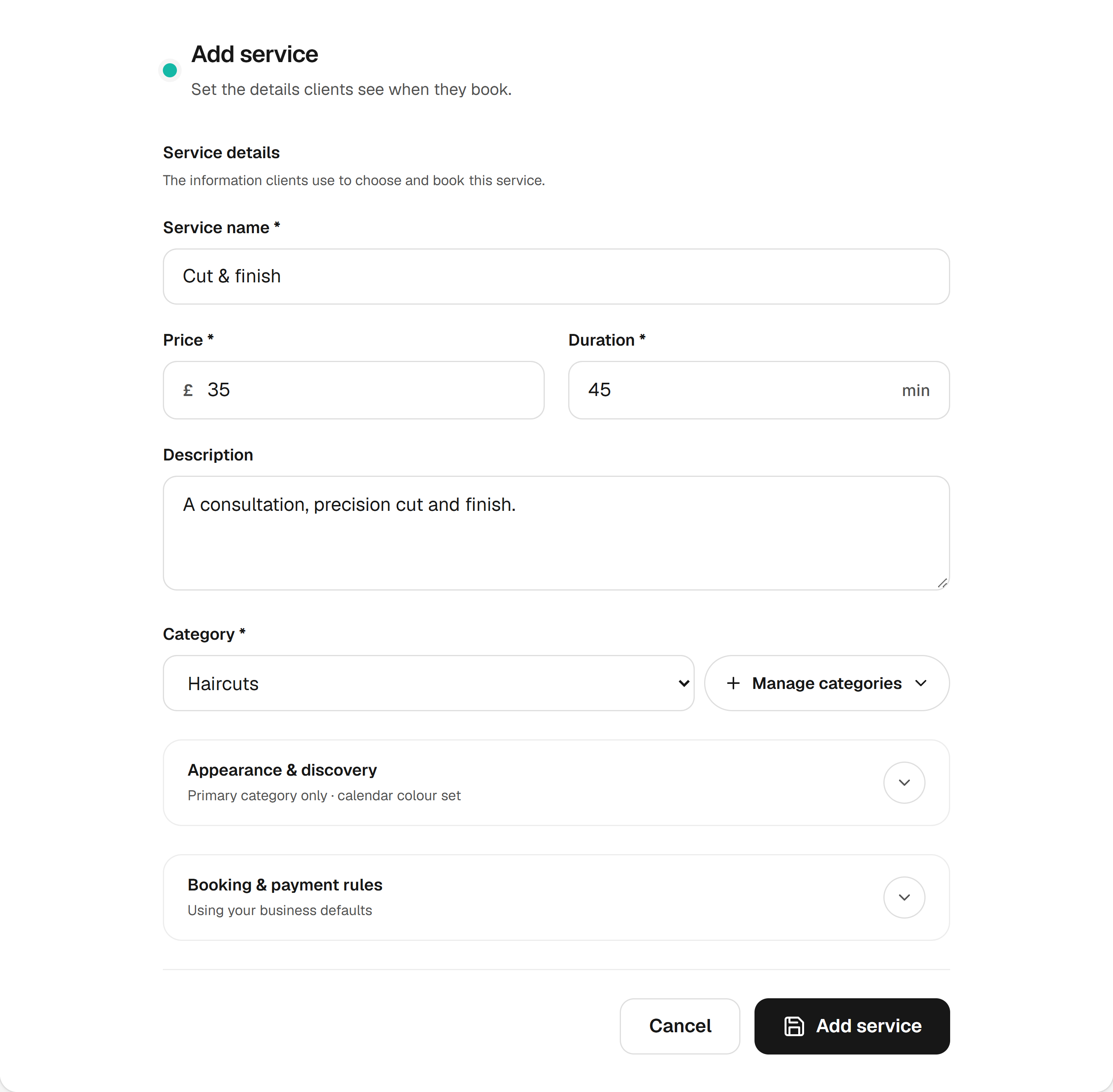
The required fields are Service name, Price, Duration and Category.
- Enter a clear Service name, such as Classic haircut.
- Enter the Price in pounds and the Duration in minutes.
- Add an optional Description explaining what the service includes.
- Choose a Category. For your own category, open Manage categories, enter a New category name and select Add, then choose it from the category list.
- Select Add service and wait for the confirmation. If you opened this form from the setup checklist, the button says Add service & return to setup.