

Chair for professionals Web guide
Create or move an appointment
Use Calendar to add an appointment yourself and change the time of an existing booking. CHAIR shows the booking form that matches your workspace: New booking for individual appointments, or Book a client for team visits.
In this guide
Add an individual appointment
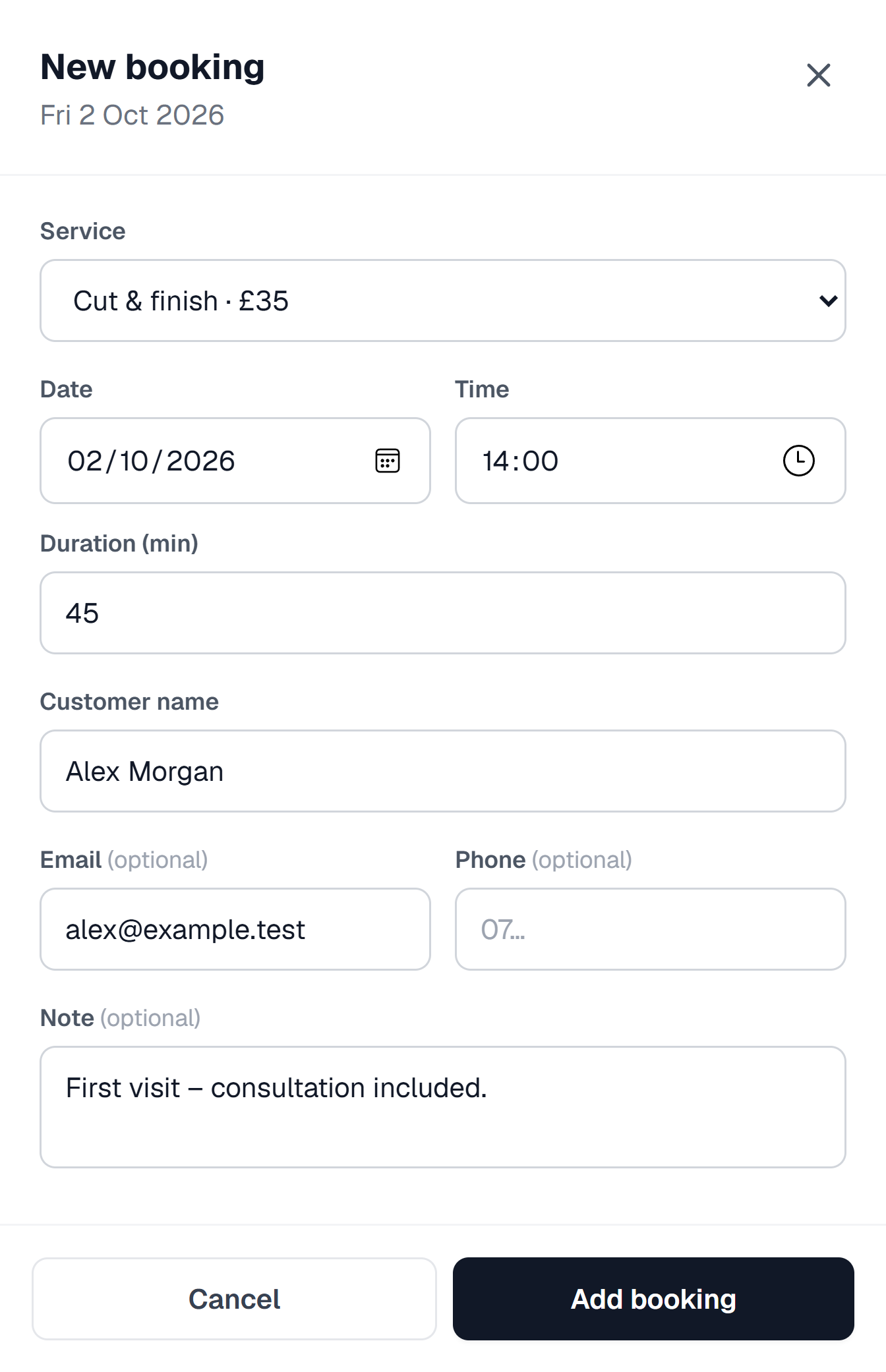
Open Calendar, select Add, then New booking. If the dialog is titled New booking, follow these steps. If it says Book a client, use the team-visit steps in the next section.
- If the With field appears, choose the person taking the appointment.
- Choose a Service. For a one-off appointment, choose Custom / other… and enter its Service name, Price and Duration (min).
- Check the Date, Time and Duration (min).
- Enter the Customer name. Email, Phone and Note are optional.
- Select Add booking and check that the appointment appears in your calendar.
Book a team visit
If Calendar opens a Book a client dialog, you can add services in appointment order and choose the professional for each one.
- Enter the Client name and include an Email or Phone so the client can open their visit securely.
- Choose the Date and Start time.
- Tick the services under Services, in appointment order. Choose a professional for each selected service, or No preference if that option is available.
- Select Review appointment and check the services, professionals and times.
- Select Change details if anything needs correcting. Otherwise, select Confirm visit · client pays later.
- Wait for Visit added to the diary, then check the appointment in Calendar. Open visit and payment link lets you review the visit.
If the time overlaps another booking
The New booking form warns you about overlapping appointments. The team-visit form checks availability when you select Review appointment.
- Read the warning and check the existing appointment in Calendar.
- Choose another time if the overlap is unintended.
- If the New booking form offers Book anyway (overlap), use it only when you intend to keep both appointments at that time.
Move an existing booking
Open the appointment details to change its date and time.
- Select the appointment in Calendar.
- Select Reschedule.
- Enter the New date and New time, then select Continue.
- Review the old and new times in Move booking.
- If a customer email is on file, choose whether to email them the new time. The switch uses the customer's name. Select Move & notify to send the notice, or turn the switch off and select Move booking.
- Check that the booking appears at its new time.