

Chair for professionals Web guide
Set your opening hours
Your opening hours tell clients when your business takes bookings. Set your weekly schedule in My Page on the professional website.
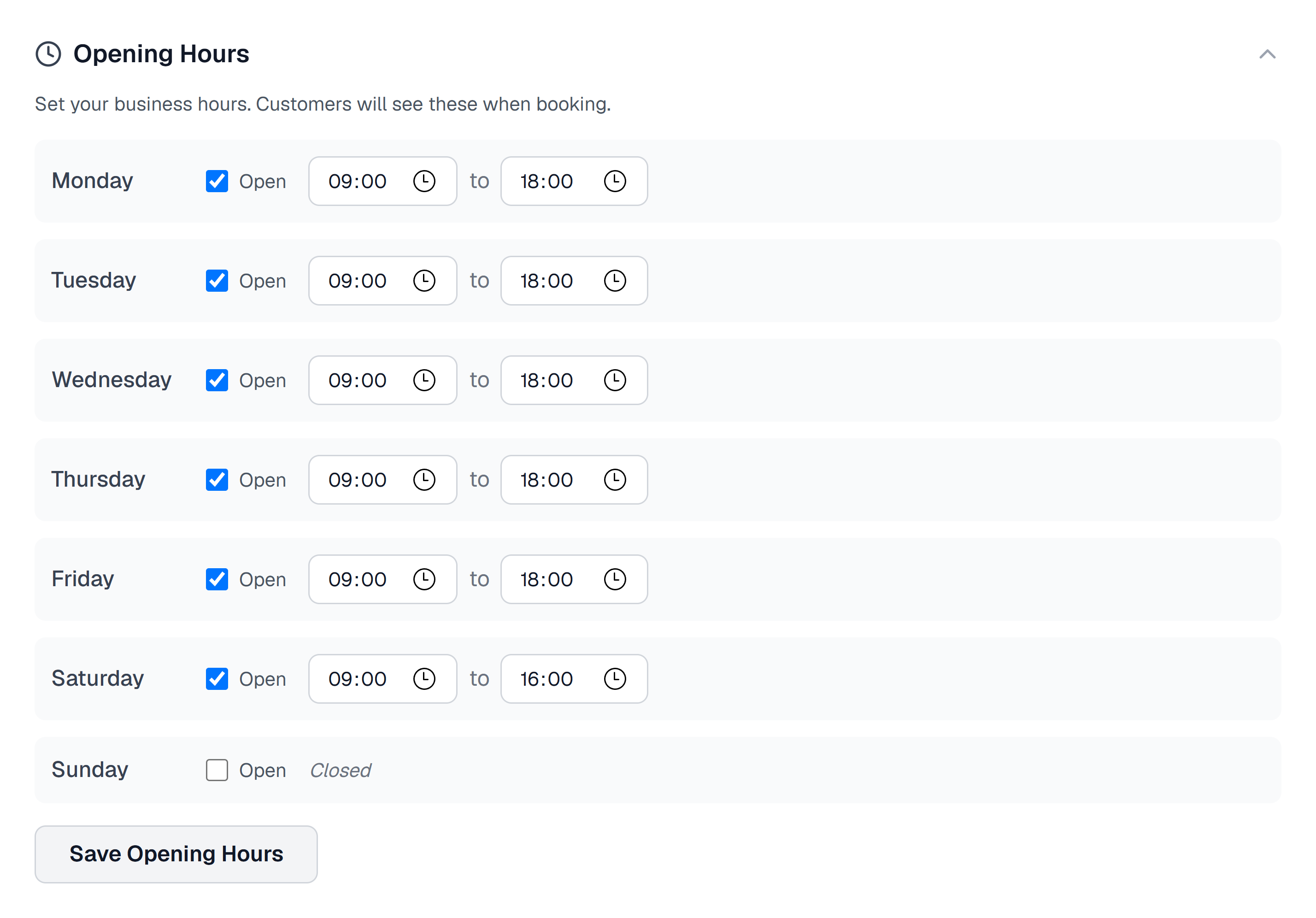
Choose your open days
- Open My Page from the dashboard navigation.
- Expand Opening Hours.
- Tick Open beside each day when you take bookings.
- Untick Open for days you are closed. Those rows display Closed.
Set and save your times
Each open day has two time fields, separated by to.
- Enter the opening time in the first field and the closing time in the second.
- Check every day of the week, including your closed days.
- Select Save Opening Hours. If you opened this section from the setup checklist, select Save & return to setup.
- Wait for Opening hours saved successfully! before leaving the section.
Check your availability
Business opening hours are the weekly baseline. Team members can also have their own hours, breaks and time off.
- Open Calendar to review your schedule.
- If you manage a team, open Team, select a person and review Hours & holidays.
- Once online bookings are live, open your booking page and check the dates and times available to clients.